Consulta le faq
Pagina Coordinatore
Pagina Coordinatore
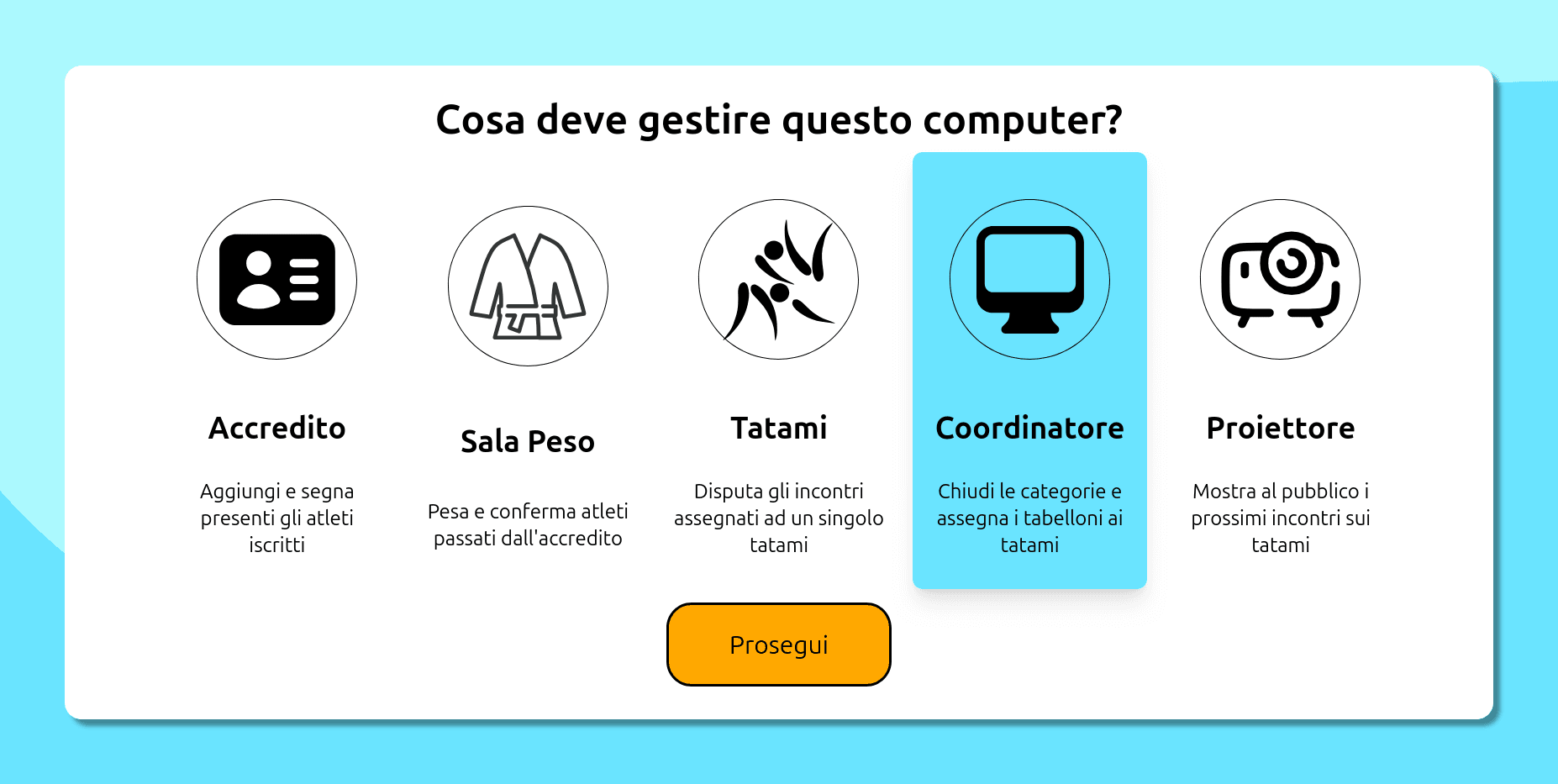
Questa è la pagina di gestione principale della gara. Da qui è possibile modificare i parametri d'incontro delle classi d'età, creare i sorteggi, distribuirli e creare la classifica delle società.
La pagina è stata pensata per occuparsi di tutte le mansioni di competenza del coordinatore di gara. Tuttavia, un coordinatore deve occuparsi di molto altro. È consigliato quindi avere una persona dello staff che si occupa di seguire le sue direttive alla lettera ed applicarle al programma.
Con Judo in Cloud non è necessario avere un tecnico specializzato. Formeremo noi, a costo zero, una persona incaricata da voi di occuparsi della gestione della gara, con le informazioni già disponibili su queste pagine. Grazie all'interfaccia intuitiva e alla completezza di funzioni presenti, sarà tutto fattibile da persone formate senza problemi.
Per problematiche gravi il giorno della gara saremo comunque a disposizione. Grazie al cloud, potremmo intervenire tempestivamente dal nostro ufficio senza dover essere fisicamente presenti, per assicurarvi un risparmio enorme sul personale. Tuttavia, sappiate che ogni funzione necessaria per correggere le problematiche di una gara sono già presenti ad un click di distanza!
Tatami
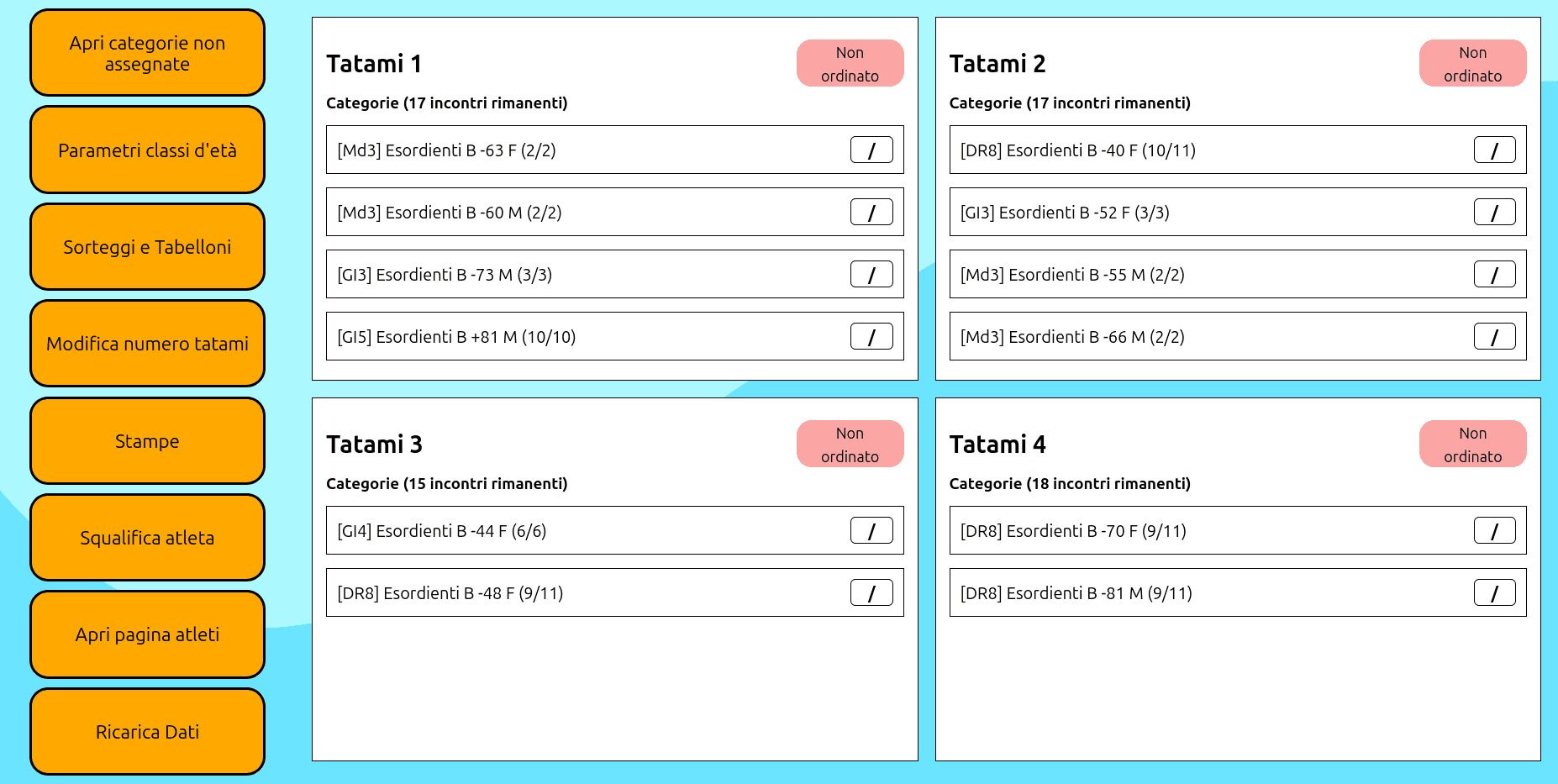
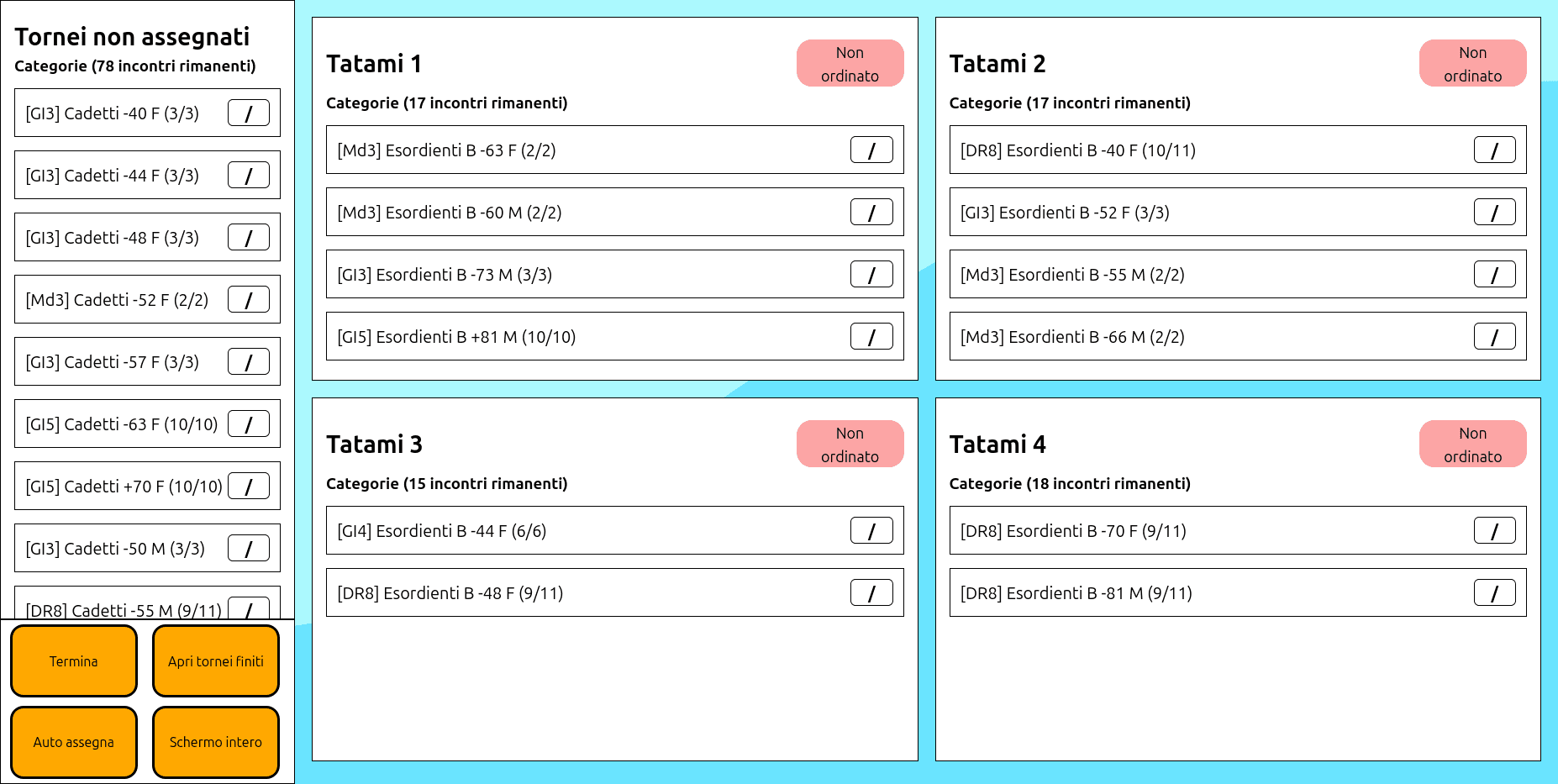
Ogni quadrato rappresenta un tavolo di un tatami, con i suoi tabelloni assegnati, il numero di incontri totali e quelli rimanenti da disputare (aggiornabili dal pulsante Ricarica Dati). È possibile spostare una categoria da un tavolo ad un altro trascinandolo. Se il tavolo sta disputando un incontro, potrà finirlo senza rischiare di perdere dati.
Apri categorie non assegnate
Qui verranno mostrati i tabelloni appena creati e non ancora assegnati ad un tavolo. È possibile trascinarli su un tatami per assegnarglielo, oppure assegnarli tutti automaticamente. In questo caso, il sistema farà in modo che tutti i tatami abbiano un numero di incontri da disputare più simile possibile (tenendo conto anche di quelli che già rimangono da fare). Attenzione che questa distribuzione non tiene conto di altro se non il numero di incontri, e che il coordinatore potrebbe usare la sua esperienza per dividerli diversamente. Assicurati sia lui a decidere di usare questa funzione, oppure no.
Quando un tavolo disputa l'ultimo incontro di un tabellone, questo viene segnato come finito, viene creata la classifica, e il tabellone viene spostato nella parte "Apri tornei finiti".
Parametri classe d'età
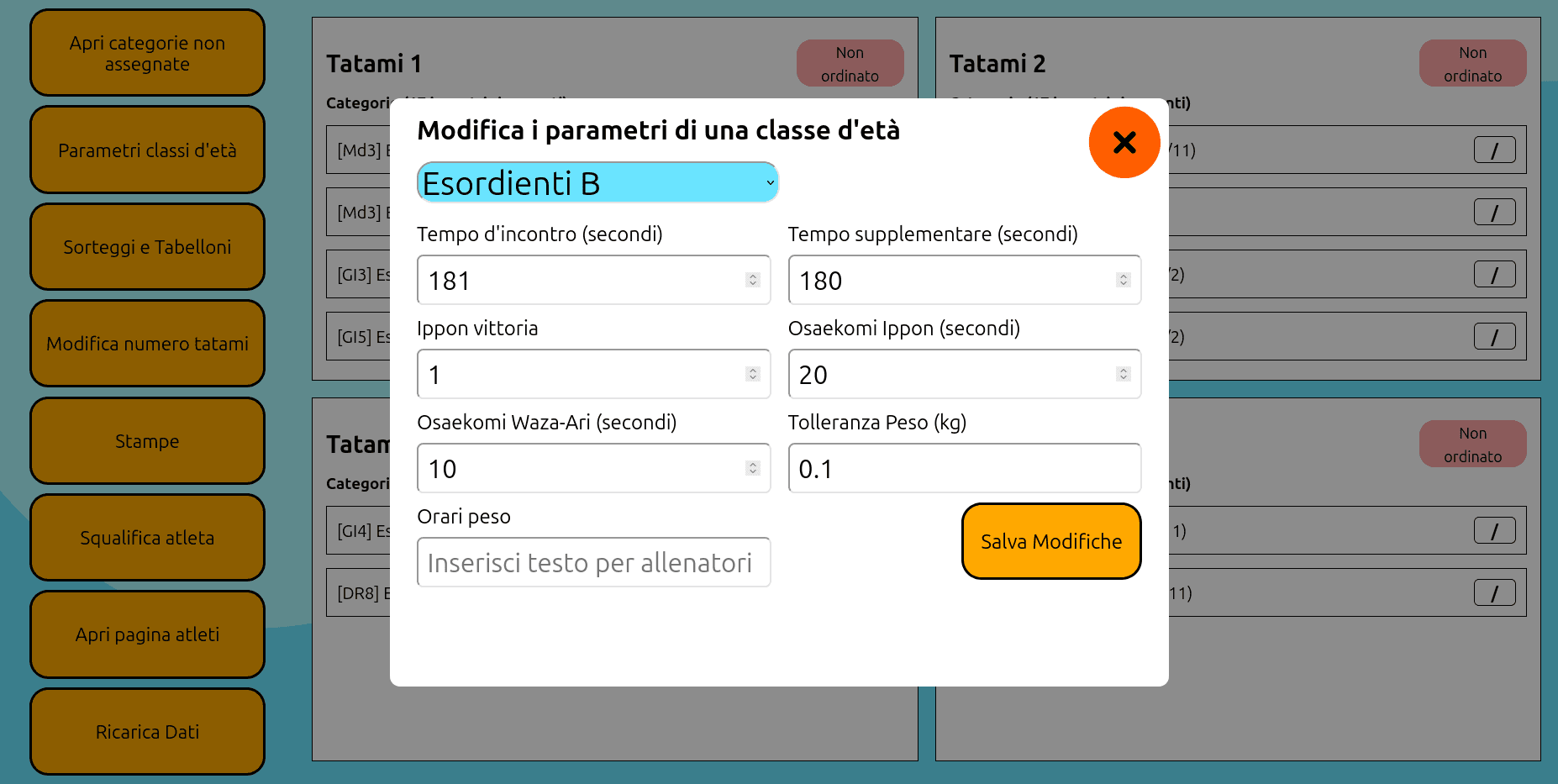
Modifica per ogni classe d'età i parametri dell'incontro (durate e condizioni di vittoria) e la tolleranza peso. È possibile scrivere un messaggio per gli allenatori per gli orari di peso o accredito, visibile nella pagina pubblica degli atleti divisi per categoria (andando dalla homepage su competizioni e cliccando sul numero di atleti del vostro evento).
Sorteggi e Tabelloni
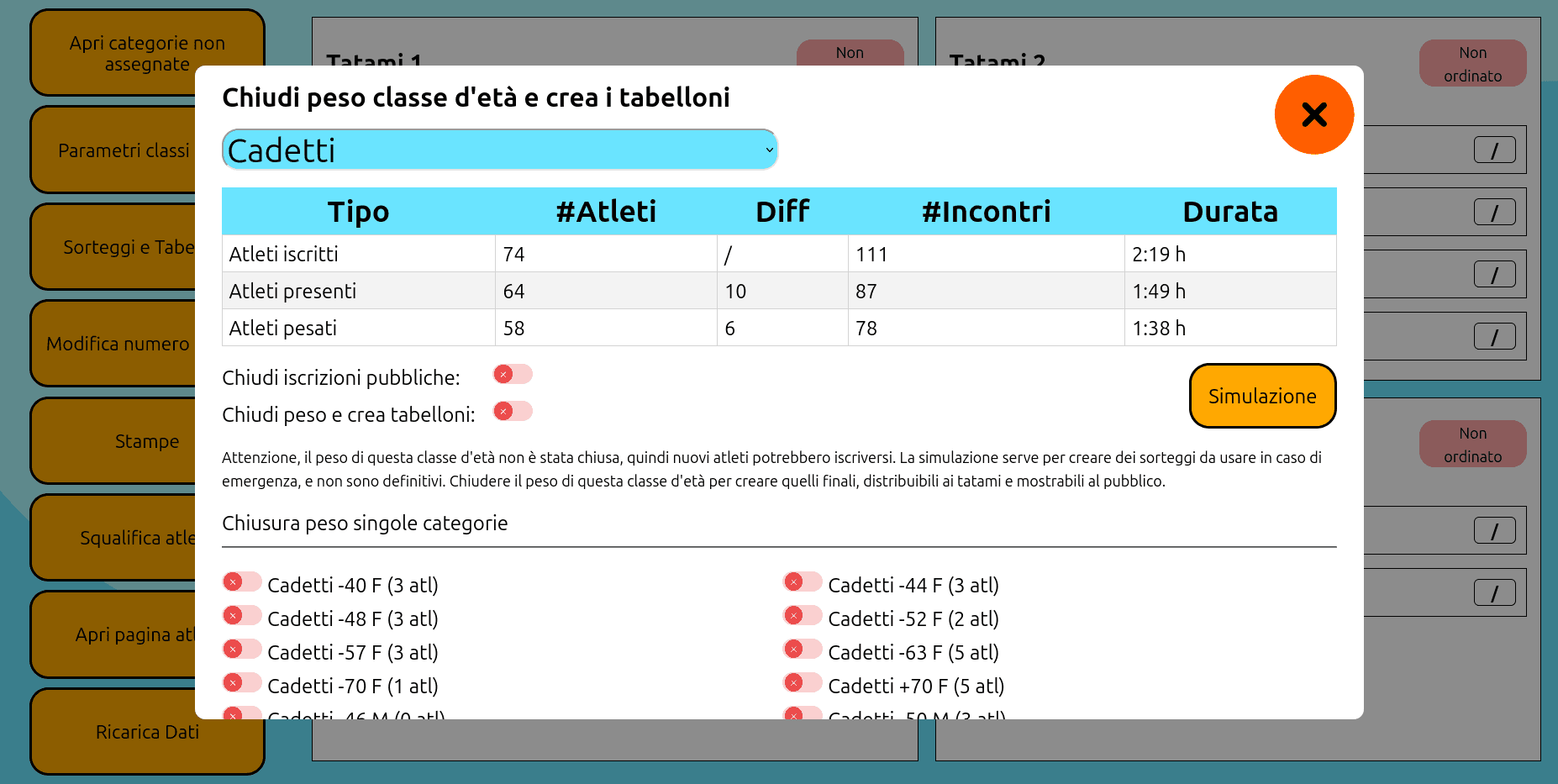
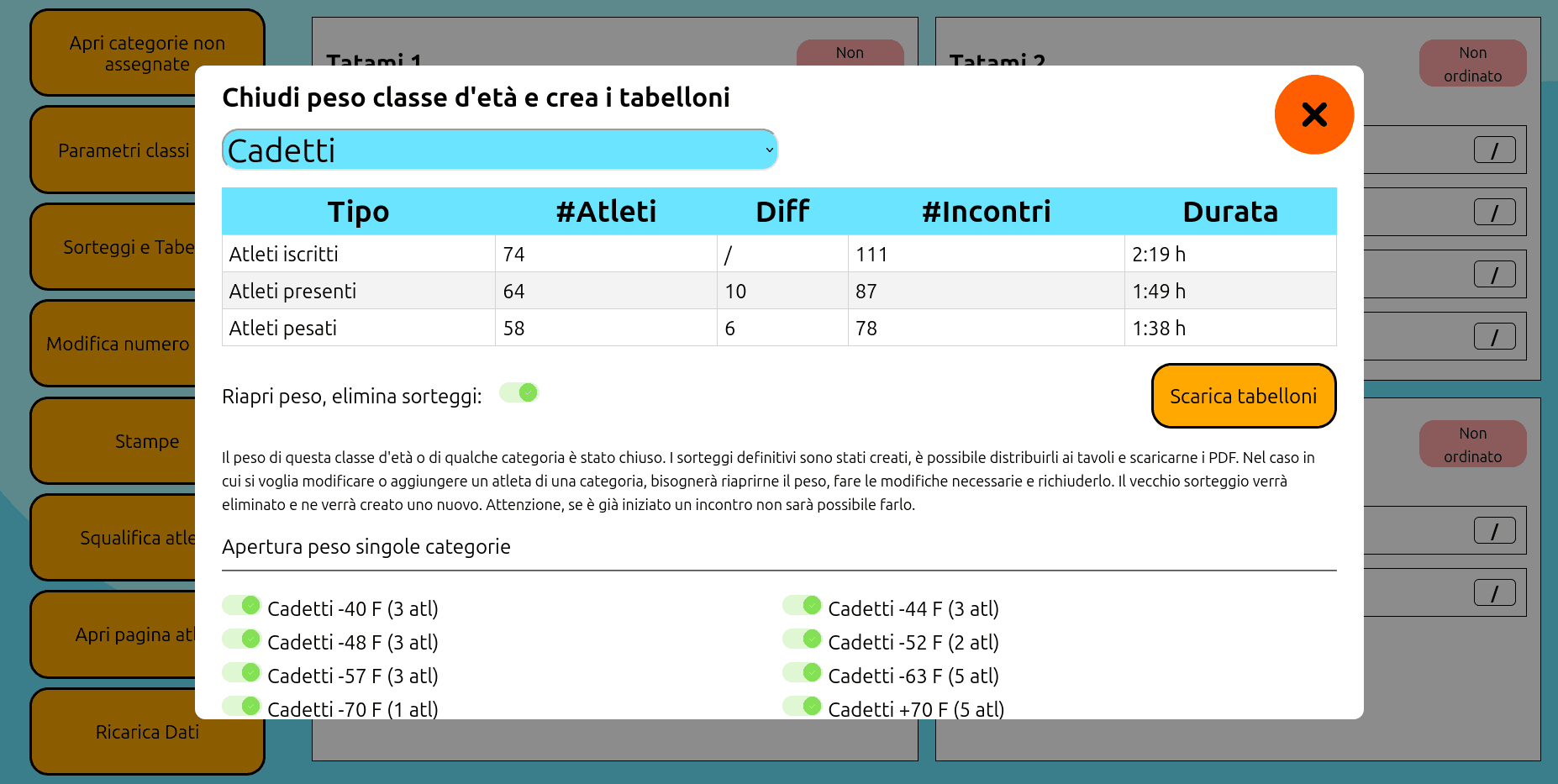
Da qui è possibile vedere per ogni classe d'età quanti atleti si sono iscritti, quanti sono presenti e quanti pesati. Puoi chiudere le iscrizioni pubbliche, oppure il peso di una classe d'età per crearne i sorteggi per ogni categoria. Sarà possibile stampare i pdf, ma è consigliato prima distribuirli nei tavoli, cosicchè venga scritto nel foglio il tatami assegnato. Infine, è possibile scaricare delle simulazioni dei tabelloni finali, per ogni evenienza.
Si raccomanda sempre di stampare i tabelloni e distribuirli anche fisici ai tatami prima di iniziare i combattimenti. Avere una copia fisica dove le vittorie vengono segnate a mano assicura di avere un piano B qualora, per qualunque motivo, la corrente o internet dovesse saltare. In questo modo, l'evento può continuare mentre il problema viene risolto, e i dati possono essere aggiornati in un secondo momento velocemente.
Ci sono due tipi di sorteggi: agonistici e non. Le categorie agonistiche, nel caso di più di cinque atleti, creano un tabellone a doppia eliminazione con recupero, cercando di allontanare atleti della stessa società come spiegato nel PAAF. Le non agonistiche invece creano tante mini pool da quattro atleti massimo ognuna, cercando di non mettere assieme atleti di una stessa società.
Una volta chiusa una categoria, non sarà più possibile aggiungere, modificare o eliminare atleti di essa. Nel caso sia necessario, è possibile riaprire il peso di una categoria singola o dell'intera classe d'età. I sorteggi di esse verranno eliminati, quindi sarà possibile fare le modifiche necessarie e ricreare nuovi sorteggi (che saranno diversi da prima, poichè casuali). Per correttezza, è necessario rifare il sorteggio qualora il numero di atleti cambi per una categoria, e non è possibile cancellare il sorteggio di una categoria dove sono già iniziati degli incontri senza perderne i dati.
Nel caso in cui si vogliano accorpare più categorie assieme (ad esempio nei bambini o negli adulti poco numerosi), è necessario cambiare i dati degli atleti dalla pagina dell'accredito o del peso, in modo che risultino con lo stesso peso e sesso. Se invece si vogliono fare incontri liberi, ad esempio per un atleta che è da solo in una categoria agonistica (senza un tabellone apposito), sarà possibile farle dalla pagina del tatami.
Modifica numero tatami
Scegli il numero di tatami della competizione. Togliere un tatami con dei tabelloni assegnati riporterà questi ultimi dentro quelli non assegnati. Non verranno persi incontri o altri dati.
Stampe
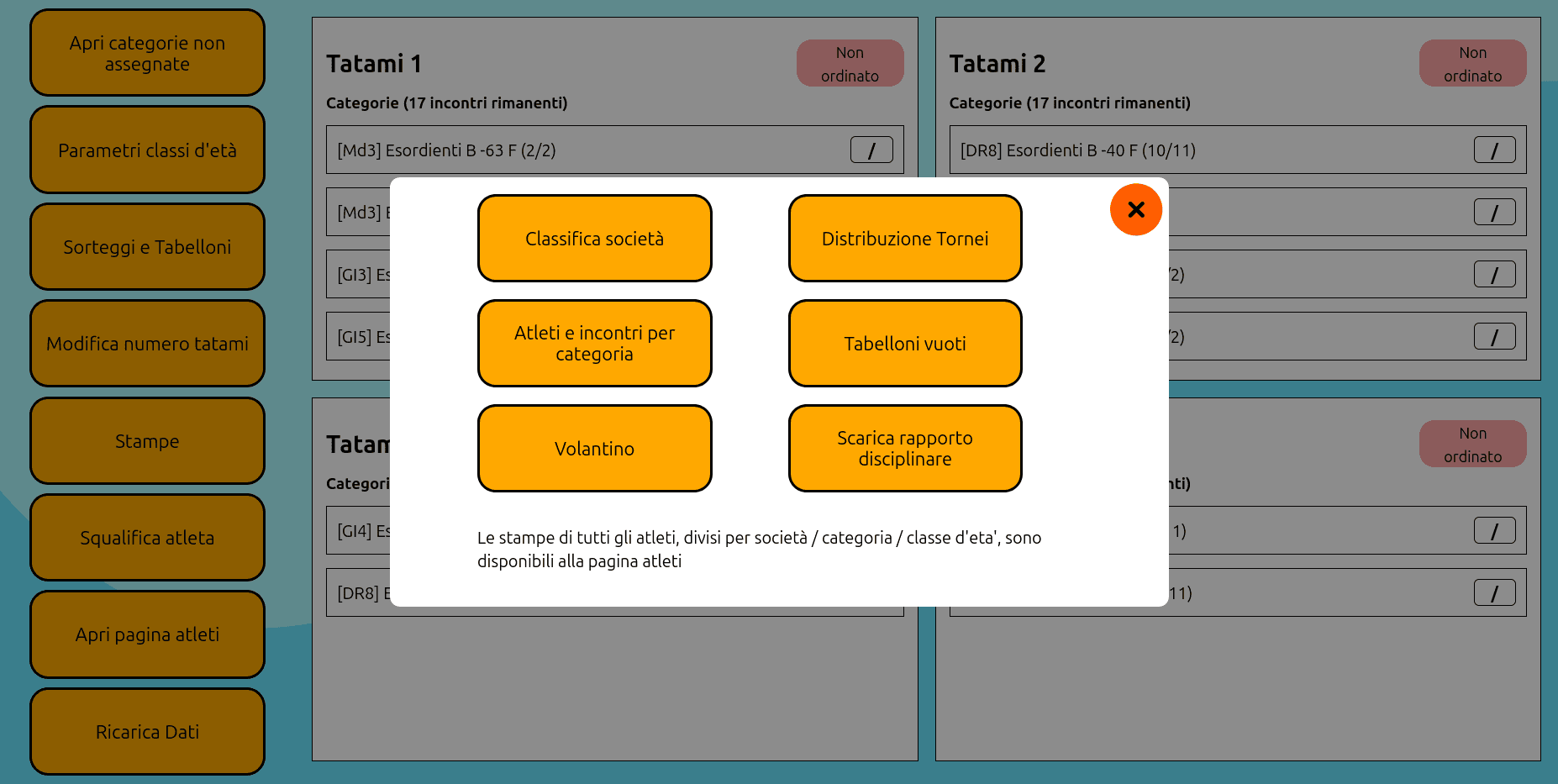
Sono disponibili varie stampe della competizione, per aiutare la gestione ottimale dell'evento.
Creare la classifica società permette al pubblico di poterla vedere appena cliccato il pulsante. Attenzione a farlo solo a fine evento, per evitare di mostrare una classifica incompleta.
La distribuzione tatami mostra i tornei attualmente assegnati ad ogni tavolo, nel caso servisse una copia fisica.
Atleti ed incontri per categoria mostra tutti i dati necessari per un coordinatore per organizzare la gara. Specialmente per gare numerose, il coordinatore deve organizzare una divisione iniziale dei tabelloni almeno qualche giorno prima.
Tabelloni vuoti possono essere utili qualora sia necessario creare a mano un tabellone, mentre i volantini sono ottimi da appendere in giro per direzionare con un QR Code gli allenatori ed il pubblico alla pagina apposita per vedere i tabelloni comodamente dal loro telefonino.
Ricarica dati
Ricarica i dati dei tornei e delle classi d'età, per vedere la situazione attuale dei tatami.
Ordine incontri
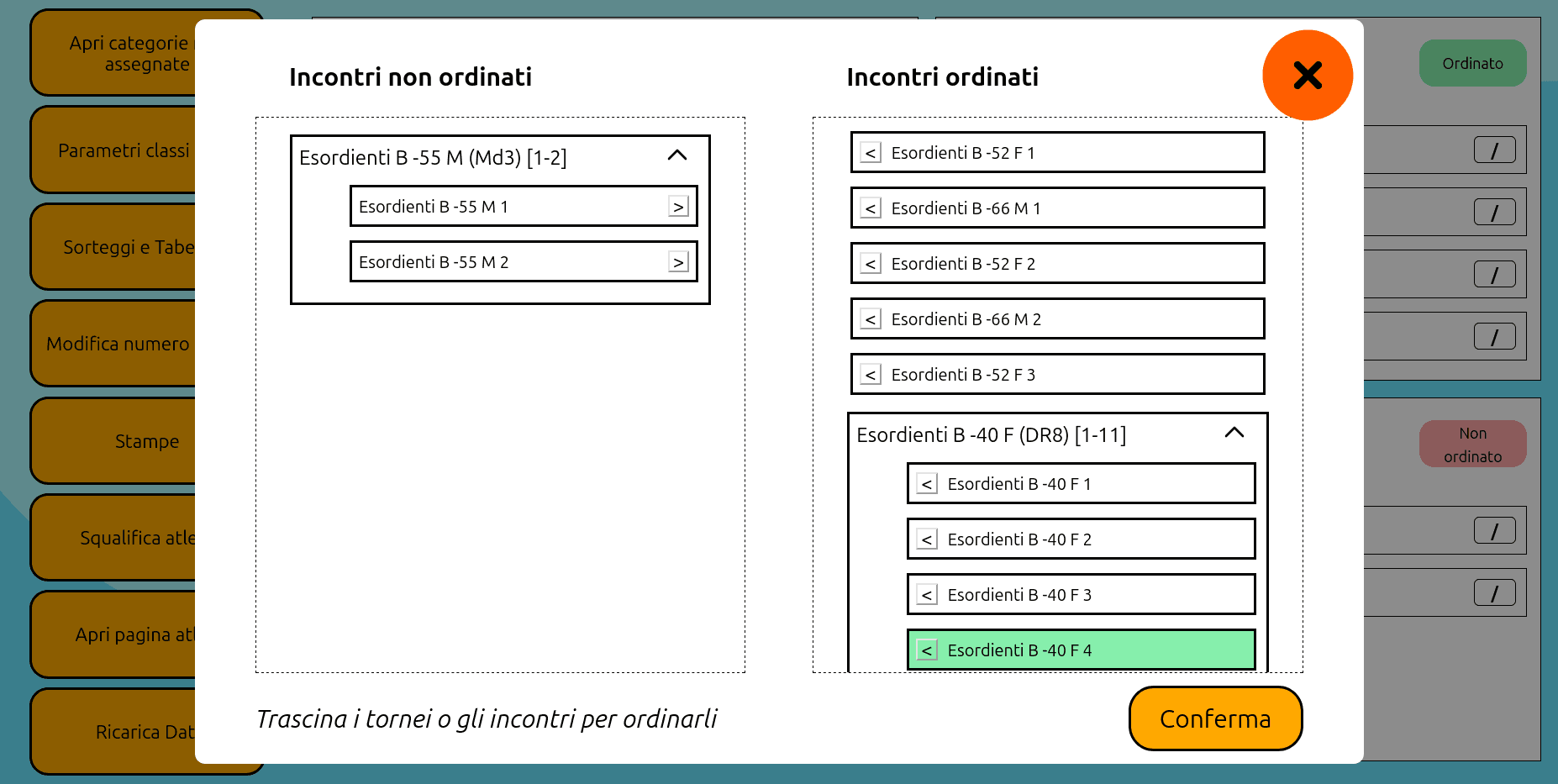
Normalmente, una volta assegnati i tabelloni ai tavoli, ogni tatami è libero di scegliere la categoria e gli incontri da fare. Tuttavia, può essere che il coordinatore voglia decidere l'ordine esatto degli incontri da fare per ogni tavolo. In questo caso, basta cliccare sull'icona colorata in alto a destra di un tatami per scegliere quali incontri fare prima. Si possono trascinare intere categorie o singoli incontri, e si possono trascinare incontri in mezzo ad una categoria (magari per spezzare un girone all'italiana, come d'esempio).
Gli incontri sono ordinabili anche dalla pagina Tatami. È necessario ordinare gli incontri di un tatami per comunicare al pubblico tra quanti incontri un atleta combatte o chi si deve scaldare nella pagina proiettore. Gli ordinamenti non sono comunque immutabili, ma permettono flessibilità ai presidenti di giuria.
Dividi tra più tatami
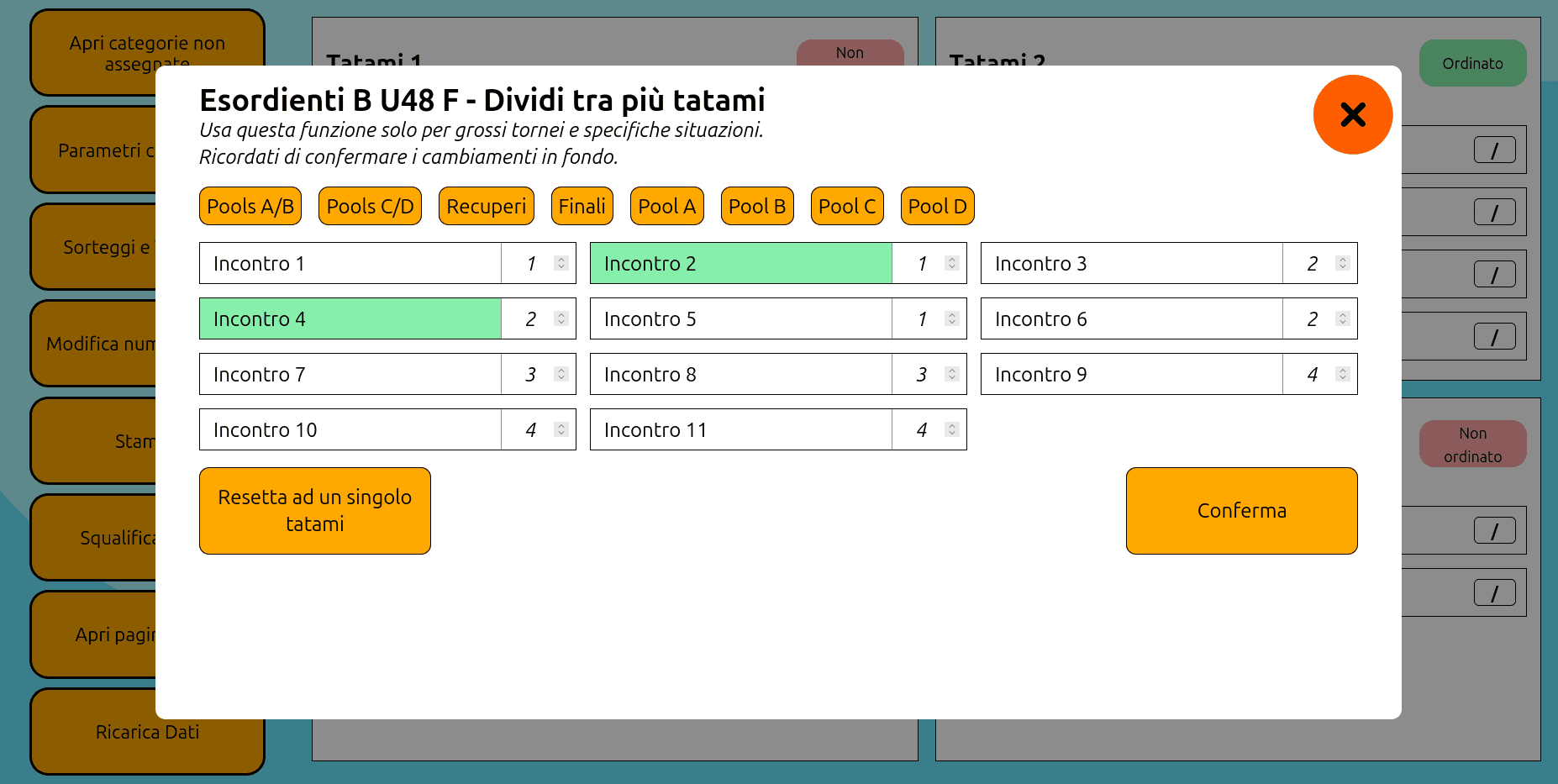
Per tornei numerosi, può essere necessario dividerlo tra più tatami. Cliccando sulla linea di divisione "/" di fianco ad un torneo, si può assegnare ad ogni singolo incontro il tatami a cui deve andare.
Per i tornei a doppia eliminazione, sono presenti dei comodi pulsanti per impostare un tatami a tutti gli incontri di una determinata pool.
Attenzione, il pezzo di un torneo diviso non può essere trascinato da un tatami all'altro, ma vanno cambiati singolarmente i numeri degli incontri da questo stesso menù. Si può comunque cambiarli tutti assieme con un singolo pulsante.
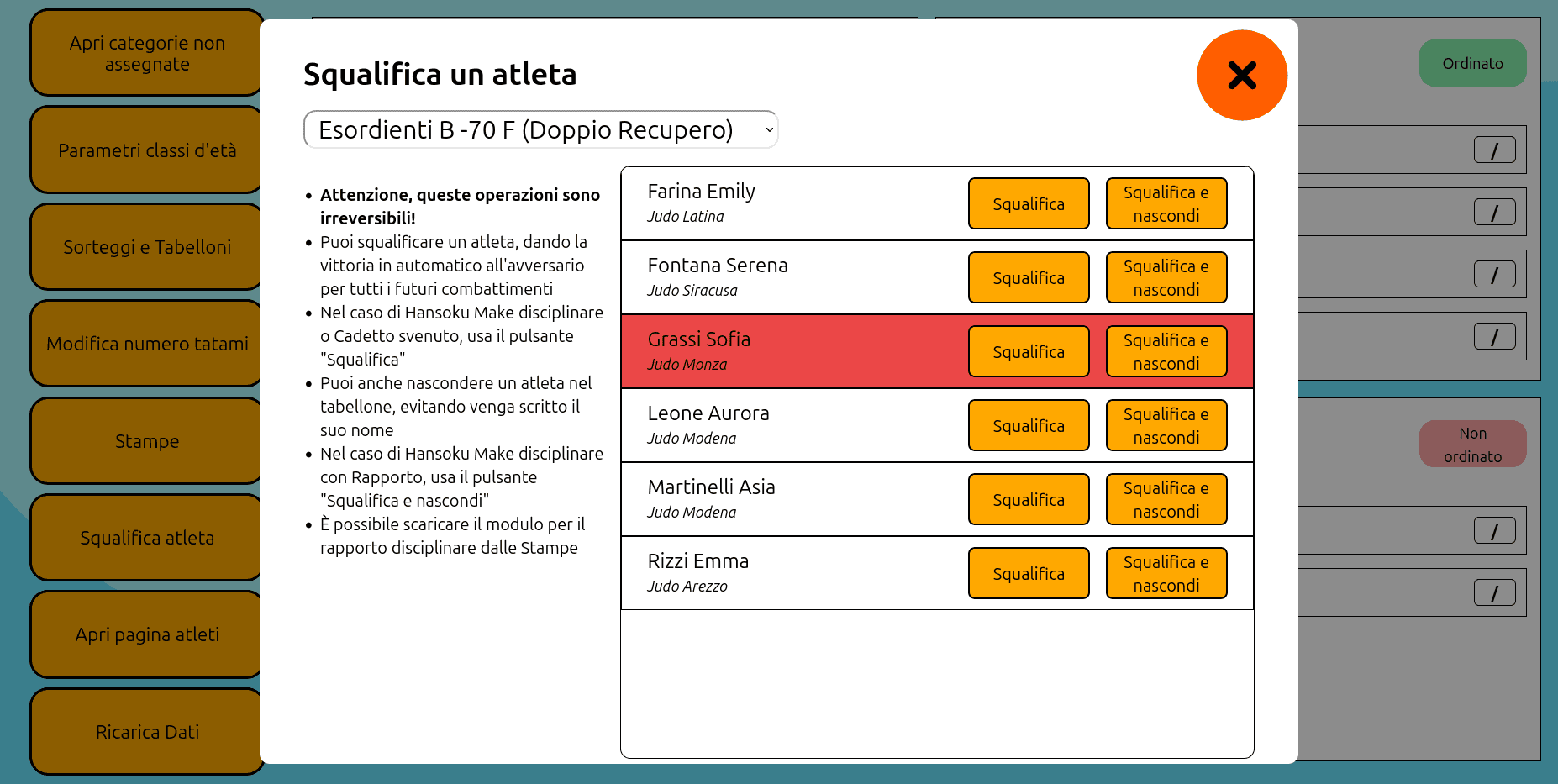
Squalifica un atleta
Nel caso in cui sia necessario squalificare un atleta, questo è possibile da questo menù. Seleziona il torneo in alto a sinistra, poi seleziona l'atleta. In tutti gli incontri successivi la vittoria verrà data automaticamente.
Nascondendo un atleta, esso non verrà più mostrato nei tabelloni.